Set up and read data from your rHT sensor
Power on the rHT sensor
Check the battery connection
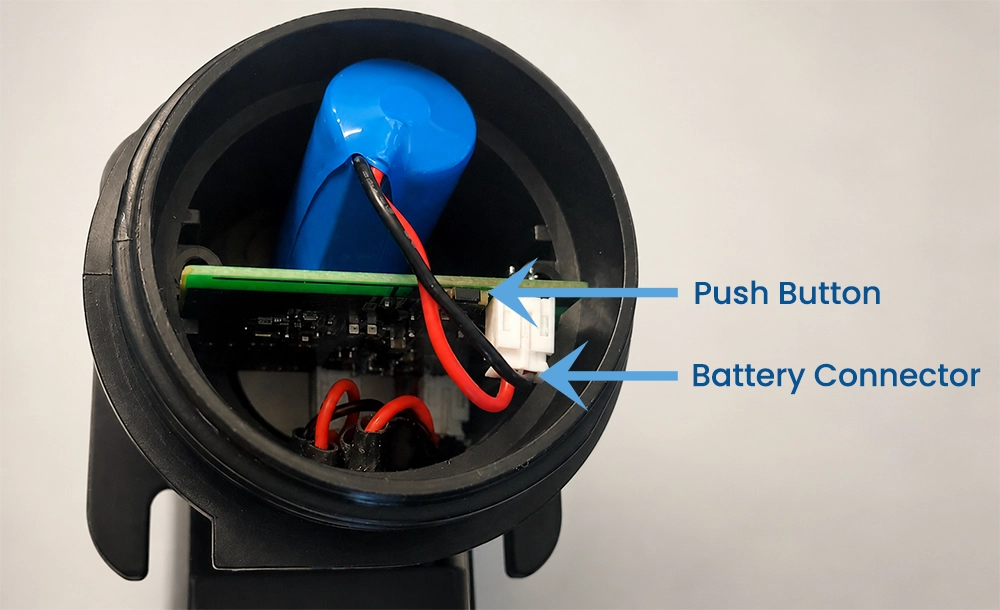
Open the sensor enclosure and make sure the CR123 battery connector is plugged into the device.
Press the internal pushbutton
Press the pushbutton inside the rHT sensor to power on the device.
Wait for Bluetooth advertising
Once powered on, the device advertises the latest temperature and humidity reading.
Download the HibouAir mobile app
Install the app
Download the HibouAir mobile app from the App Store or Google Play.
Enable Bluetooth
Turn on Bluetooth on your phone and allow Bluetooth permission if the app asks for it.
Keep the sensor nearby
Keep the rHT sensor close to your phone while scanning and reading data.
Read live and historical data
Find the rHT sensor
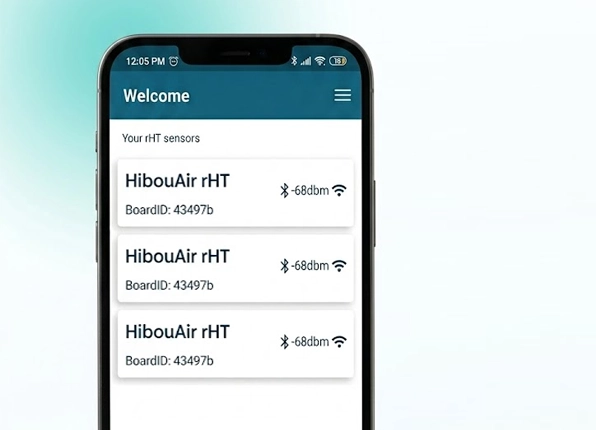
Open the HibouAir app and scan for nearby devices. Select your rHT sensor when it appears.
Read live data
View the latest temperature and humidity sample advertised by the sensor.
Open historical data
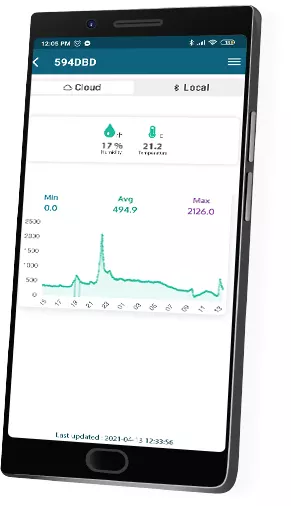
Click on historical data button to access stored measurements. Raw data in CSV format or advance report in charts is available to download.
Troubleshooting
| Issue | What to check |
|---|---|
| Sensor does not appear in the app | Make sure the battery is connected, press the internal pushbutton, enable Bluetooth, and keep the phone close to the sensor. |
| No temperature or humidity value is shown | Refresh the scan in the app and confirm that the sensor is powered on and within Bluetooth range. |
| Historical data does not load | Keep the phone close to the sensor while reading stored data. Larger datasets may take longer to transfer. |
| Sensor stops after battery replacement | Check that the battery connector is properly plugged in, then press the internal pushbutton again. |
Replace the battery
The rHT sensor uses a CR123 primary cell battery. The battery is not rechargeable. Replace it when the device no longer powers on or when the battery level is low.
Open the sensor enclosure
Carefully open the rHT sensor to access the internal battery connector.
Unplug the old battery
Disconnect the old battery connector from the device.
Connect the new battery
Plug in the new CR123 primary cell battery connector.
Power on again
Press the internal pushbutton to power on the sensor after replacing the battery.
Still need help?
Contact Smart Sensor Devices support if you need help with powering on the sensor, reading data in the app, historical data access, or battery replacement.